Category: Guides

  • NMI Collect.js on WooCommerce: Secure Card Fields

    NMI Collect.js on WooCommerce: Secure Card Fields

    NMI Collect.js is a JavaScript library from NMI that places hosted card fields on your checkout page. The shopper types the card number, expiry and CVV into fields served by NMI, not by your website. Collect.js then swaps those details for a one-time payment token, and your store sends only that token to the gateway to run the charge.

    For a WooCommerce store, this means raw card numbers never pass through your WordPress server or database. That keeps sensitive data off your site and usually makes your PCI compliance work simpler, while the checkout still looks like part of your store rather than a redirect to another page.

    How Collect.js works, step by step

    The flow is the same whichever plugin you use, as long as it is built on Collect.js:

    1. The checkout page loads the Collect.js script from NMI, along with your public tokenization key.
    2. Collect.js draws the card fields as small secure frames inside your checkout form. They are styled to match your page, but the content comes from NMI.
    3. The shopper enters card details into those fields. Your site’s own code cannot read what is typed.
    4. On “Place order”, Collect.js sends the details to NMI and gets back a payment token.
    5. Your checkout submits the token to your server along with the order details.
    6. Your server calls the NMI API with your private API key and the token to run a sale or authorization.
    7. NMI returns approved or declined, and WooCommerce updates the order.

    The payment token is meant for one use. If you want to charge the same card again later, for a subscription renewal or a returning customer, the card has to be saved to the NMI customer vault, which gives you a reusable reference instead.

    Why hosted fields matter for PCI compliance

    Every business that accepts cards has to meet the PCI DSS standard. How much work that involves depends heavily on whether card data touches your systems.

    ApproachWhere card numbers goTypical effect on your PCI work
    Plain form fields posted to your serverThrough your web server and possibly logs or databaseMuch larger scope, more controls to document and maintain
    Hosted fields (Collect.js)Straight from the browser to NMISmaller scope, since your server never sees card data
    Full redirect to a hosted payment pageEntered on the provider’s pageSmaller scope, but the shopper leaves your checkout

    Hosted fields do not make you PCI exempt. You still need to complete the right self-assessment questionnaire, keep WordPress, plugins and your theme updated, use HTTPS, and protect admin accounts. The exact questionnaire that applies to your setup is something to confirm with your acquiring bank or processor, because they set the requirements for your account.

    Because the checkout page still loads the script that draws the fields, the security of that page matters. A compromised plugin or injected script on checkout is a real risk, so keep the number of plugins that run on checkout small and remove ones you do not use.

    The keys Collect.js needs

    A Collect.js integration uses two different keys from your NMI gateway account, and mixing them up is the most common setup mistake.

    • Public tokenization key: loaded in the browser so Collect.js can draw the fields and create tokens. It is safe for it to be visible in the page source.
    • Private API key: stored on your server and used to run the actual transaction with the token. Never expose it in the browser, theme files or support tickets.

    Both keys are created in your gateway account’s security or API key settings. Menu names differ between NMI’s own portal and rebranded versions from providers, so ask your provider if you cannot find them.

    Using Collect.js through PaymentDash

    Writing a Collect.js integration yourself means handling the script, token submission, error messages and both WooCommerce checkout types. PaymentDash is a WordPress plugin for WooCommerce stores on NMI that takes card entry through NMI’s hosted Collect.js fields on both the block checkout and the classic checkout, so card numbers never touch the website. You paste your public tokenization key and private API key in the setup assistant, and a built-in guide helps you find them in your gateway.
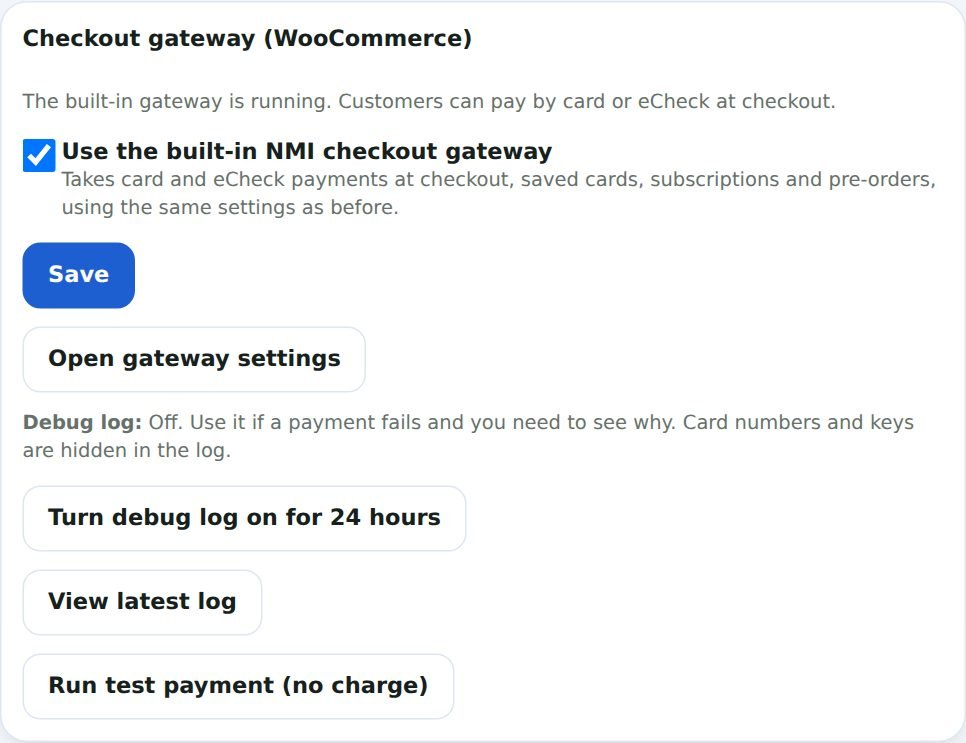
    PaymentDash gateway settings with the NMI public tokenization key field used by Collect.js
    The public tokenization key you paste here is what loads NMI's Collect.js card fields on your checkout.

    The same plugin can save cards to the NMI customer vault for repeat purchases and subscriptions, and supports optional 3D Secure 2 if the 3-D Secure service is enabled on your NMI account.

    Making the fields look like your store

    Hosted fields are frames, so your theme’s CSS does not style what is inside them directly. Collect.js accepts its own style settings, and good plugins pass sensible defaults so the fields match the rest of the form. A few practical tips:

    • Keep the field height, border and font size close to your other checkout inputs so the card section does not look bolted on.
    • Check the fields on a phone. Small frames can feel cramped if the checkout column is narrow.
    • Make sure error messages for an invalid card number or expiry are visible and close to the field.
    • Test with dark backgrounds if your theme uses one, so placeholder text stays readable.

    Troubleshooting Collect.js on WooCommerce

    The card fields are blank or missing

    Check that the public tokenization key is entered and belongs to the same account as the private key. Then look at caching and optimization plugins: deferring, combining or delaying JavaScript on checkout often stops the Collect.js script from loading. Exclude the checkout page from those features.

    The fields load but “Place order” does nothing

    Another plugin’s script error on checkout can stop the token request. Open your browser’s developer console on checkout and look for errors. Disabling plugins one at a time on a staging site usually finds the culprit.

    Security headers block the script

    If your host or a security plugin sets a strict Content Security Policy, it must allow NMI’s script and frame sources. Ask your host to adjust the policy rather than turning it off.

    Payments fail with an invalid token error

    Tokens are single use. A double click or a page that resubmits the form can try the same token twice. A well-built plugin prevents duplicate submits, but a theme that alters the checkout button can interfere.

    Collect.js and WooCommerce checkout types

    WooCommerce has two checkout experiences: the newer block-based checkout and the classic shortcode checkout. They load payment methods differently, so a Collect.js plugin must explicitly support the one your store uses. If you switch from classic to block checkout, test your payment method again before you go live with the change.

    Wrapping up

    NMI Collect.js gives your WooCommerce store an on-page card form while keeping raw card numbers off your server. Use the right two keys, keep checkout free of script conflicts, confirm your PCI questionnaire with your processor, and test on both desktop and mobile.

    If you want Collect.js card fields, saved cards and a payments dashboard without building the integration yourself, see the PaymentDash WooCommerce gateway features or compare plans on the pricing page.

    Frequently asked questions

    Is NMI Collect.js the same as a hosted payment page?

    No. A hosted payment page sends the shopper to another page. Collect.js keeps the shopper on your checkout and places secure NMI fields inside your form.

    Does Collect.js store cards for later?

    Not by itself. It creates a one-time token. To charge a card again, save it to the NMI customer vault, which your plugin can do with the shopper’s consent.

    Does Collect.js work with the WooCommerce block checkout?

    It can, but only if your payment plugin supports the block checkout. Check the plugin’s documentation, and test after any checkout change.
  • WooCommerce NMI Setup: How to Set Up NMI Payments

    WooCommerce NMI Setup: How to Set Up NMI Payments

    To set up NMI payments on WooCommerce, you need three things: an active NMI gateway account (directly with NMI or through a provider whose gateway runs on NMI), a WooCommerce payment plugin that supports NMI, and two keys from your gateway account: a private API key and a public tokenization key. You install the plugin, paste the keys, run a test transaction, then switch to live mode.

    The whole job usually takes less time than people expect. The parts that cause trouble are almost always small: the wrong key type, test mode left on, a second gateway plugin competing for checkout, or a feature like ACH that is not enabled on the account. This guide walks through each step and the checks that prevent those problems.

    What you need before you start

    Gather these before you touch any settings. It saves a lot of back and forth.

    • An NMI gateway login. If you signed up through a reseller, ISO or bank, your gateway may carry their branding, but it still runs on NMI. Ask your provider for the login if you do not have it.
    • Admin access to WordPress with permission to install plugins.
    • A current WooCommerce install. Know whether your store uses the block checkout or the classic shortcode checkout, because your plugin must support the one you use.
    • A list of what you want to accept: cards only, or cards plus eCheck/ACH. ACH has to be enabled on the NMI account by your provider.
    • A decision on charging: charge at checkout, or authorize at checkout and capture later when you ship.
    • A staging site or a quiet hour for testing, so real customers are not checking out while you change settings.

    Understand the two NMI keys

    Most setup problems come from mixing up keys. NMI accounts use different keys for different jobs, and a WooCommerce integration that uses hosted card fields needs both of these:

    KeyWhat it doesWhere it is usedKeep it secret?
    Private API keyAuthorizes server-side actions: sales, captures, refunds, voids, vault requestsStored in your plugin settings on the serverYes. Treat it like a password.
    Public tokenization keyLoads the hosted card fields in the shopper’s browser and turns card details into a one-time tokenSent to the browser on the checkout pageNo, it is designed to be public

    Both keys are created in your gateway account’s security or API key settings. The exact menu name can differ depending on your provider’s version of the portal, so if you cannot find it, ask your provider’s support team where API keys are managed. When you create the private key, give it a clear name such as “WooCommerce store” so you can revoke it later without affecting other integrations.

    Never paste the private key into a theme file, a support forum, or an email. If you think it has been exposed, delete it in the gateway and create a new one.

    Step by step: connect NMI to WooCommerce

    The steps below follow the general pattern for any NMI plugin. Your plugin’s labels may differ slightly.

    1. Back up your site. A quick backup before installing a payment plugin is cheap insurance.
    2. Install and activate the gateway plugin from your WordPress dashboard.
    3. Turn on test or sandbox mode first. Enter test credentials if your provider gave you a separate sandbox account, or use the plugin’s test mode.
    4. Paste the private API key and public tokenization key into the plugin settings. Check for stray spaces at the start or end.
    5. Choose the transaction type: sale (charge now) or authorize only (capture later).
    6. Enable the payment methods you want, such as cards and, if your account supports it, eCheck/ACH.
    7. Set the checkout title and description customers will see, for example “Credit or debit card”.
    8. Save, then place a test order on the storefront using your provider’s test card numbers.
    9. Confirm the transaction appears in the NMI gateway and the WooCommerce order has the right status and transaction ID.
    10. Switch to live mode, place one small real order, then refund it.

    Set up NMI with PaymentDash

    If you want the setup done in one place, PaymentDash is a WordPress plugin built for WooCommerce stores on the NMI gateway. It combines a checkout gateway with a payments dashboard inside WordPress. A setup assistant walks you through it, and a built-in guide shows you how to find your NMI keys. You paste the private API key and public tokenization key, tick “Use these keys for my WooCommerce checkout”, and the gateway is ready. Setup takes about ten minutes.

    PaymentDash gateway settings screen in WordPress with NMI key fields and checkout options
    The PaymentDash gateway settings, where you paste your NMI keys and turn on checkout for WooCommerce.

    If another NMI gateway plugin is already active, PaymentDash detects it and can leave checkout with that plugin. That lets you use the dashboard first and move checkout over when you are ready, instead of switching everything at once.

    Test before you go live

    A test order that “goes through” is not the same as a working setup. Run through a short checklist:

    • Approved card: the order shows the status you expect for a paid (or authorized only) order and carries a transaction ID.
    • Declined card: the customer sees a clear error and the order is not marked paid.
    • Refund: issue a refund from the order screen and confirm it shows in the gateway.
    • Capture: if you authorize only, capture a test order and confirm the amount.
    • Saved card: if you offer card saving, save a card in My account and use it on a second order.
    • Mobile: complete one checkout on a phone, since hosted card fields can look different on small screens.
    • Emails: confirm order emails go out as expected.

    Use only the test card numbers your provider supplies. Never use real card numbers in test mode.

    Common setup problems and fixes

    Card fields do not appear at checkout

    This usually means the public tokenization key is missing or wrong, or a caching or script optimization plugin is blocking the hosted fields script. Exclude the checkout page from caching and script minification, then reload.

    “Authentication failed” or similar errors

    The private API key is wrong, deleted, or belongs to a different account than the tokenization key. Create a fresh key pair from the same gateway account.

    Live orders go to the sandbox

    Test mode is still on. Turn it off and place one small live transaction to confirm.

    ACH or 3D Secure options do nothing

    Both need to be enabled on your NMI account. 3D Secure 2 requires the 3-D Secure service on the account. Ask your provider to switch them on, then retest.

    Two gateways show up, or orders are processed twice

    Two NMI plugins are active. Choose one for checkout and disable the gateway setting in the other.

    Settings worth reviewing after launch

    Once live orders are flowing, look at a few settings that affect disputes and customer experience:

    • Billing descriptor. A recognizable descriptor on card statements can cut down on disputes from customers who do not recognize a charge. Some processors allow a dynamic descriptor per transaction; check what yours supports.
    • Fraud filters. NMI accounts can have fraud and AVS/CVV rules at the gateway level. Review them with your provider so they are strict enough to stop bad orders but not so strict that good customers get declined.
    • 3D Secure. Consider it if you see card-testing attacks or fraud disputes, or if you sell to regions where it is expected.
    • Payment alerts. Set up notifications for declines, refunds and chargebacks so problems do not sit unnoticed.

    Wrapping up

    A solid WooCommerce NMI setup comes down to the right two keys, a plugin that supports your checkout type, careful testing, and a quick review of descriptor and fraud settings once you are live. Get those right and your checkout should run quietly in the background.

    If you want checkout and a full payments dashboard set up together inside WordPress, see PaymentDash pricing to compare plans, or start with the free NMI gateway plugin.

    Frequently asked questions

    Do you need a separate merchant account to use NMI with WooCommerce?

    NMI is a gateway, so you also need a merchant account with a processor. Many providers bundle both. Check your agreement or ask your provider which processor your account settles through.

    Can you test NMI without charging real cards?

    Yes. Use your plugin’s test or sandbox mode with the test card numbers your provider supplies. Turn test mode off before taking real orders.

    Why does a provider’s gateway look different from NMI’s?

    Many providers rebrand the NMI gateway with their own logo and portal address. The keys and integration work the same way, though menu names can vary.